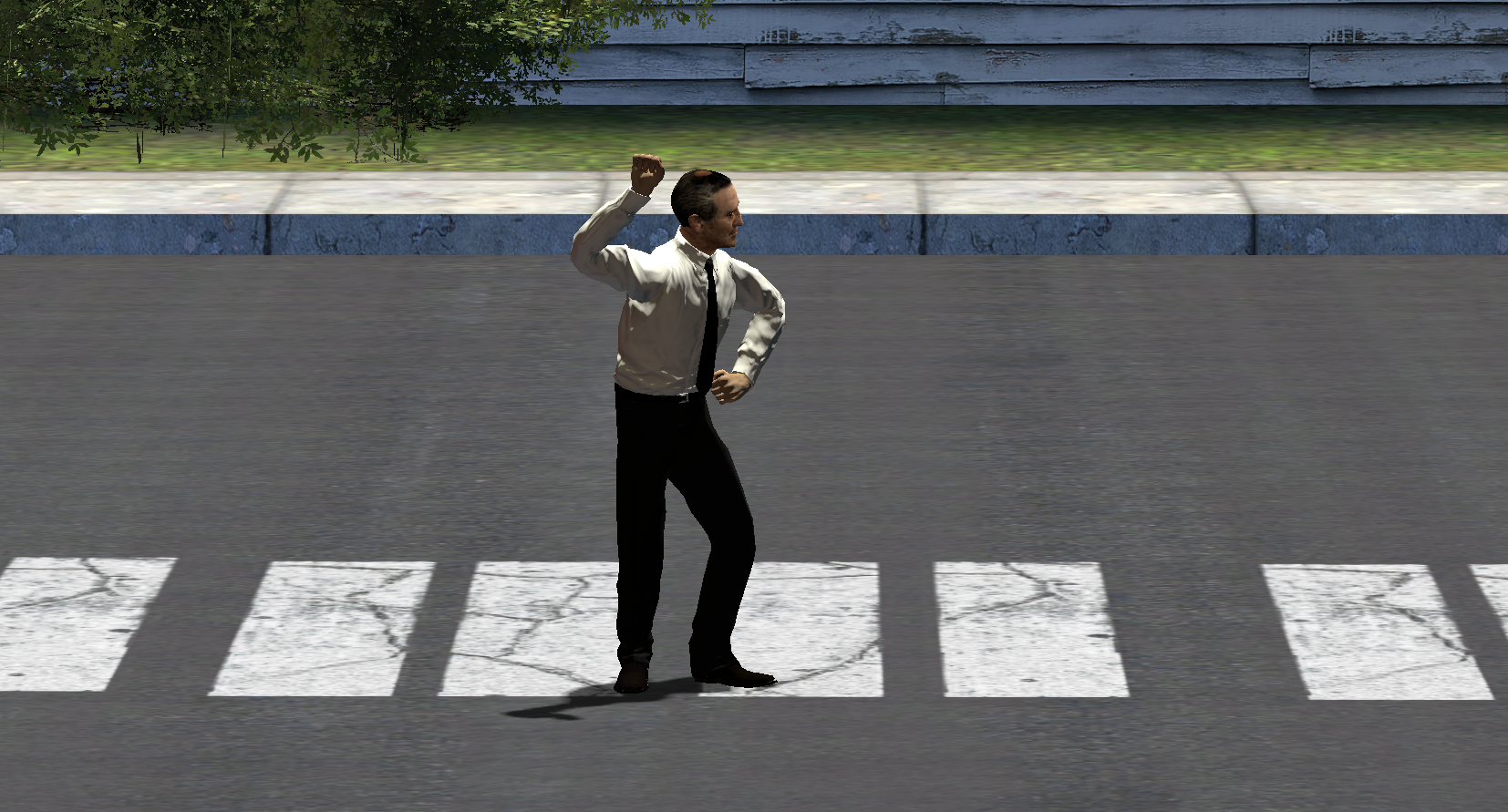


Binding keys in Garry's Mod is a straightforward and easy process. Follow the steps below to set up your own keybinds in Garry's Mod!
How to Bind in GMod
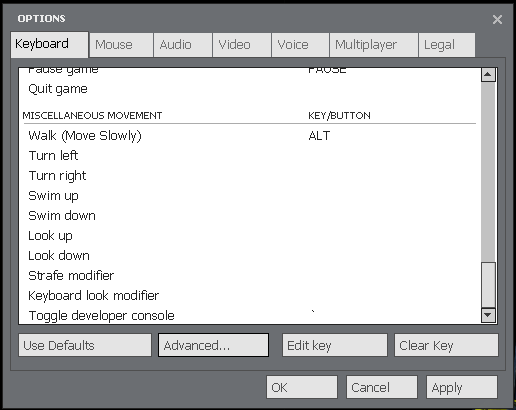
To bind a keybind in GMod, you will need to enable developer console. To do this you will need to go to your settings and bind a key to "Toggle developer console"
Once you have enabled console, you can create binds. To create a bind, type bind, followed by the command that you want the bind to perform.
Common Bind Commands
Below are a list of bind commands that are most commonly used by GMod players.
Useful DarkRP Binds
Mug Advert - bind "<put key here>" "say /advert Mug Drop 10k or Die in 10 seconds."
Raid Advert - bind "<put key here>" "say /advert Party Raid"
Counter - bind "<put key here>" "say /advert Counter"
Warn Advert - bind "<put key here>" "say /advert Warn 1/2/3"
Buy 357 Ammo - bind "<put key here>" "say /buyammo 357"
Buy AR Ammo - bind "<put key here>" "say /buyammo ar2"
Buy Pistol Ammo - bind "<put key here>" "say /buyammo pistol"
Buy Shotgun Ammo - bind "<put key here>" "say /buyammo buckshot"
Buy Sniper Ammo - bind "<put key here>" "say /buyammo SniperPenetratedRound"
Put Your Gun in Your Inventory - bind "<put key here>" "say /invholster"
Below is an example of what one of these binds will look like in your console.

Garry's Mod Bind Key Commands
Any key that has a letter on your keyboard (ex. k) has the "Keybind Name" as that respective letter (ex. bind "k" "say I love Garry's Mod!"}. Those binds have been omitted from this list for conciseness.
| Keybind Name | Number Pad Keys |
|---|---|
| kp_end | Keypad 1 |
| kp_downarrow | Keypad 2 |
| kp_pgdn | Keypad 3 |
| kp_leftarrow | Keypad 4 |
| kp_5 | Keypad 5 |
| kp_rightarrow | Keypad 6 |
| kp_home | Keypad 7 |
| kp_uparrow | Keypad 8 |
| kp_pgup | Keypad 9 |
| kp_enter | Keypad Enter |
| kp_ins | Keypad 0 |
| kp_del | Keypad . |
| kp_slash | Keypad / |
| kp_multiply | Keypad * |
| kp_minus | Keypad - |
| kp_plus | Keypad + |
| Keybind Name | Navigation Keys |
|---|---|
| uparrow | Up Arrow |
| downarrow | Down Arrow |
| leftarrow | Left Arrow |
| rightarrow | Right Arrow |
| ins | Insert (Above Arrows) |
| del | Delete (Above Arrows) |
| pgdn | Page Down (Above Arrows) |
| pgup | Page Up (Above Arrows) |
| home | Home (Above Arrows) |
| end | End (Above Arrows) |
| pause | Pause/Break (Above Arrows) |
| Keybind Name | Mouse Buttons |
|---|---|
| mwheeldown | Mouse - Scroll Down |
| mwheelup | Mouse - Scroll Up |
| mouse1 | Mouse - Left Click |
| mouse2 | Mouse - Right Click |
| mouse3 | Mouse - Wheel Click |
| mouse4 | Mouse - Page Back |
| mouse5 | Mouse - Page Forward |
| Keybind Name | Special Keys |
|---|---|
| f1-f12 | F1 to F12 (Top Row) |
| escape | "ESC" (Top Left of Keyboard) |
| tab | Tabulator (Above Caps Lock) |
| capslock | Caps Lock |
| shift | (Shift Below Caps Lock) |
| ctrl | Control (Below Caps Lock) |
| alt | Alt (Left of Space Bar) |
| space | Space Bar |
| backspace | Backspace (Above Enter) |
| enter | Enter |
| semicolon | ; |
| lwin | Windows Key (Left of Space Bar) |
| rwin | Windows Key (Right of Space Bar) |
| apps | Menu |
| numlock | Num Lock |
| scrolllock | Scroll Lock |
How to Dance in GMod
Dancing in Garry's Mod is simple. To emote in GMod, copy the animation name for the emote and paste them into your console. In the "<put key here>" section, simply add the keybind that you'd like to add. These are act commands that will make your player dance in game.
Garrys Mod Dance Key Binds
Thumbs Up - bind "<put key here>" "_darkrp_doanimation 1610"
Follow Me - bind "<put key here>" "_darkrp_doanimation 1611"
Bow - bind "<put key here>" "_darkrp_doanimation 1612"
Non Verbal No - bind "<put key here>" "_darkrp_doanimation 1613"
Wave - bind "<put key here>" "_darkrp_doanimation 1615"
Lion Pose - bind "<put key here>" "_darkrp_doanimation 1616"
Sexy Dance - bind "<put key here>" "_darkrp_doanimation 1617"
Laugh - bind "<put key here>" "_darkrp_doanimation 1618"
Act Dance - bind "<put key here>" "_darkrp_doanimation 1642"
How to Unbind a Key in GMod
To unbind a key, type unbind followed by the key that you would like to unbind. Example: unbind "t"
