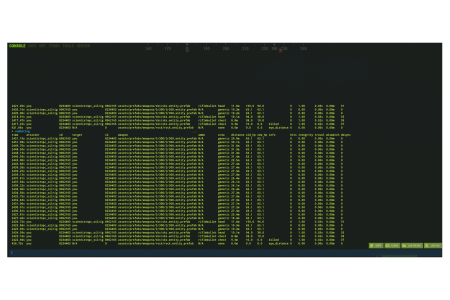


The combat log command in Rust allows players to view a historical record of their combat engagements. This log is stored on the server and is accessible from the server the player is currently connected to. When the command is entered successfully, it displays 12 columns of information in the console. If no combat has been recorded, the columns will still appear, but no data will be shown under them.
By default, each Rust server keeps a record of the last 100 combat events involving a player. Server administrators can adjust the size of this log using the combatlogsize variable. The log continues to record combat data regardless of whether the player is online or offline. Understanding how to check the combat log in Rust is essential for tracking your combat performance. This guide will walk you through the process, including the necessary commands and binding options to make accessing your combat log seamless.
How to Open and Check the Combat Log in Rust
The combat log in Rust is a valuable tool that provides detailed information about your recent combat encounters. To open and check the combat log, follow these simple steps:
- Open the Rust console by pressing the
F1key on your keyboard. - Once the console is open, type the command
combatlogand pressEnter. - The combat log will appear. If it is not working, make sure that you have a direct connection to the server.
The combat log will display a detailed list of your recent combat interactions, including damage dealt and received, weapon used, and hit locations. Below is a table with all the different values and their meanings:
| Column Title | Description |
|---|---|
| Time | The recorded server time in which the combat round was initiated. |
| Attacker | The player that initiated the combat round. |
| Attacker ID | The player’s unique server/network ID. |
| Target | The player or object (i.e. armored door) that was harmed by the Attacker. |
| Target ID | The player or object’s unique ID. |
| Weapon | The weapon used in the combat round. |
| Ammo | The ammo used in the combat round. |
| Area | The area in which the hit registered (i.e. head, neck, arm, generic). |
| Distance | The distance in which the attack was initiated in meters. |
| Old HP | The total health of the target before the combat round took place. |
| New HP | The total health of the target after the combat round took place. |
| Info | Additional information, statuses, and flags. |
Why would you want to use the Combat Log?
There are a few important reasons to know how to use the combat log in Rust:
- Performance Analysis: You can review you combat performance. This can help you in future engagements.
- Error Review: By examining the combat log, you can understand what went wrong in a particular encounter, mainly missed shots.
- Cheat Detection: Players and server administrators can use the combat log to detect suspicious activities or potential cheating. Unusual patterns or impossible stats can indicate the use of hacks or exploits.
- Server Administration: Server admins can monitor player behavior with this tool.
Rust Combat Log Commands
Knowing the right commands to use in Rust can significantly enhance your ability to manage and understand your combat log. Here are some essential commands:
combatlog: Displays the combat log with details of recent combat encounters.combatlog clear: Clears the current combat log.combatlog save: Saves the current combat log to a file for later review.combatlog load: Loads a previously saved combat log file.
combatlog "insert value here"
If you want to find the combat log of another player, you can use an identifier after the combatlog command to pull up their combat log as an administrator. The identifiers that can be used are:
- Player Name
- Player's IP Address
- Player's STEAMID64
Note: This command does not work on RCON.
server.combatlogsize
Use this command to set the number of entries saved in combat logs. This is a server side command that can be used by admins to choose how large the combat log is.
server.combatlogdelay
Use this command to set how long you would like it to take for the combat log data to be available to the player that is using the command. By default, this value is set to 10 seconds.
How to Bind Combat Log - Rust
Binding the combat log to a key can make it much easier to access during gameplay. Follow these steps to bind the combat log in Rust:
- Open the Rust console by pressing the
F1key. - Type the following command to bind the combat log to a key:
bind key "combatlog". Replace key with the key you want to use (e.g.,bind k "combatlog"). - Press the designated key to quickly open the combat log whenever needed.
- To remove the binding, use the command:
unbind key.